Settings
The Settings section allows you to control which resource is being provisioned and the behavior of a Microsoft 365 Group and Team.
A Team uses the Microsoft 365 Groups infrastructure and follows therefore also the settings specified for the Microsoft 365 Group.
Microsoft 365 Group Settings
- Only group members can post conversations to the group: Only members of the groups can send messages to the Groups mailbox and generate new threads.
- Group members are subscribed to receive group conversations: All new Group members are also subscribers and get a notification in Outlook if a new message has been posted to a group.
- Hide in Outlook experiences: Use this Option to hide the Group from the address list and the calendar from the calendars section of the calendar view in Outlook.
- Disable welcome e-mail: Disable the default email every user gets when he or she has been added to a group.
Team settings
First channel name
Every new Team starts with one channel, named by Microsoft Teams in the language of the person who creates it. Use First channel name under Team settings → First channel to give the first channel a name that fits your naming convention.
- Leave the field empty to keep the name Microsoft Teams chooses.
- Enter a fixed name, for example
Announcements, to give every Team created from the template the same first channel name. - Use
{input}to let the requester choose the name. The Create wizard then asks for it in the Details step and shows any text around{input}next to the field. - Use the EasyLife placeholders, such as
{user:...}and{data:...}, to build the name from the requester or from the wizard fields.

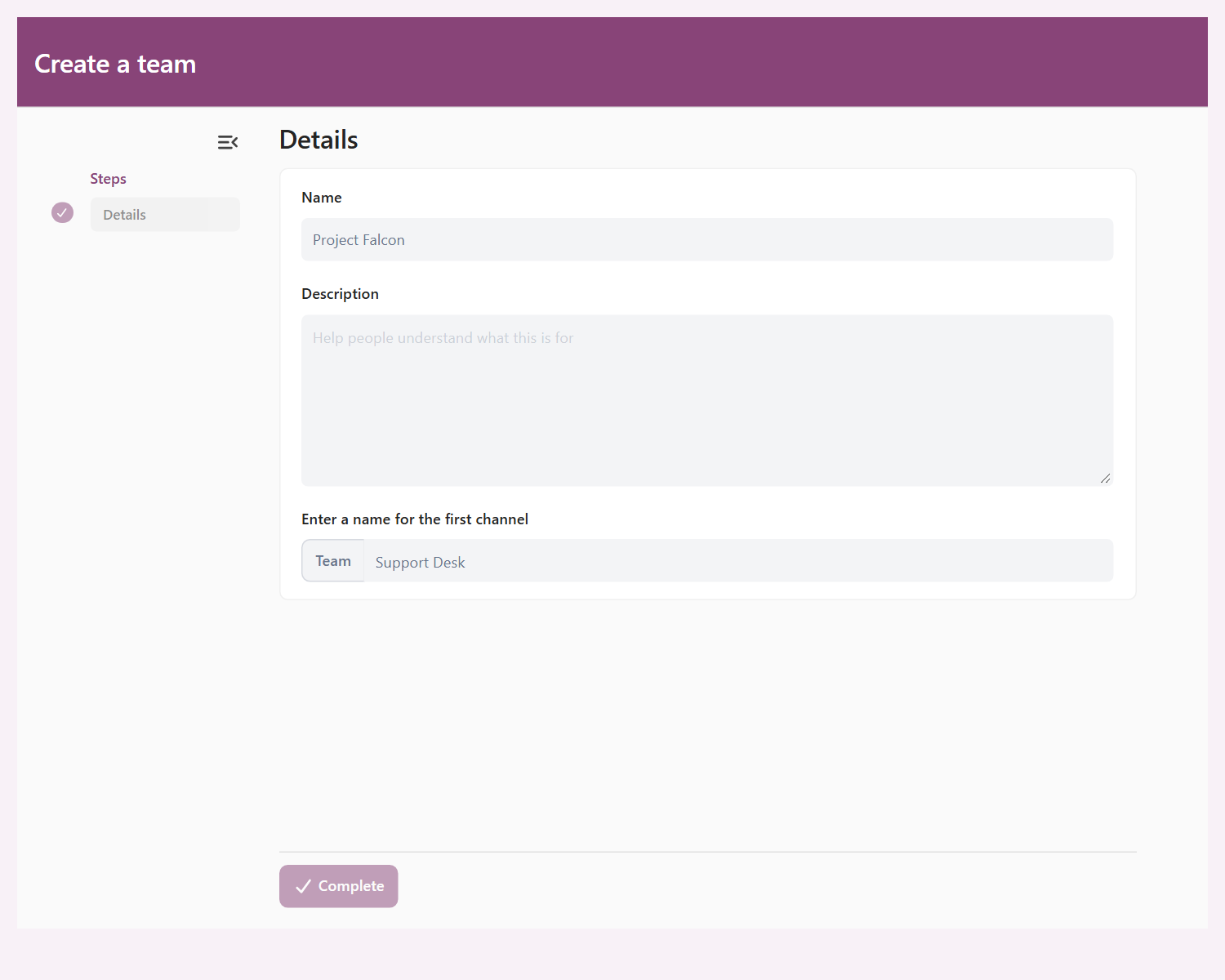
EasyLife does not save a template with a first channel name that:
- is the default name Microsoft Teams uses, such as
GeneralorAllgemein, - contains a character or word that Microsoft Teams reserves for channel names, or
- is longer than 50 characters once the placeholders are removed.
EasyLife renames the first channel once, right after the Team is created. A later change to the template does not rename channels of existing Teams, and EasyLife never reverts a name that an owner changes in Microsoft Teams. If the rename fails, provisioning continues and EasyLife records a warning.
To add tabs to the first channel, see the Team automation step.
Viva Engage community settings
Viva Engage templates have a Settings tab with one option:
- Allow people outside the organization to send email to the community: Email sent from outside the organization is delivered to the community address instead of being rejected.
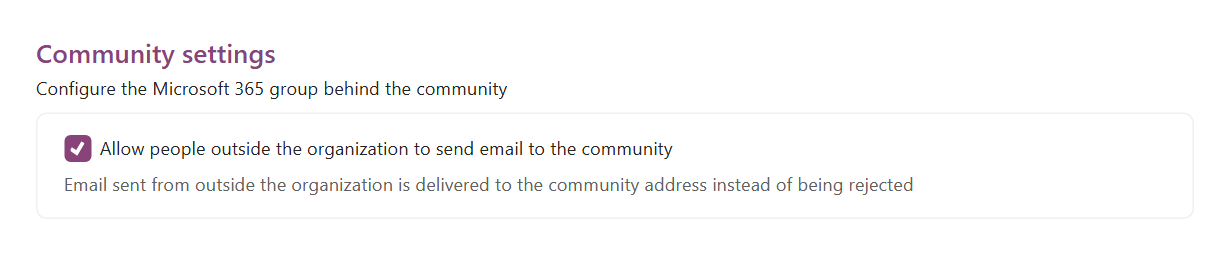
The other Microsoft 365 Group settings are not offered. Microsoft sets them when a community is created and does not accept them afterwards, so EasyLife could not apply them.
New Viva Engage templates no longer store the Disable welcome email and Hide in Outlook experiences defaults. They were saved but never applied. Existing templates keep what they have stored until you open and save them.