Privacy
Sensitivity Labels
Microsoft's Sensitivity Labels are a robust feature within Microsoft 365, offering you the ability to classify and safeguard sensitive information across your organization. With EasyLife 365, leveraging sensitivity labels for all supported resources directly from your templates is effortless. You have two convenient approaches to managing sensitivity labels:
Within EasyLife 365, you can:
- Specify a default sensitivity label for all resources created using this template.
- Allow users to select the appropriate sensitivity label from a dropdown.
- Opt not to apply sensitivity labels and instead manage permissions through EasyLife 365 settings.
If you choose the latter option, read on for further guidance.
Resource Privacy
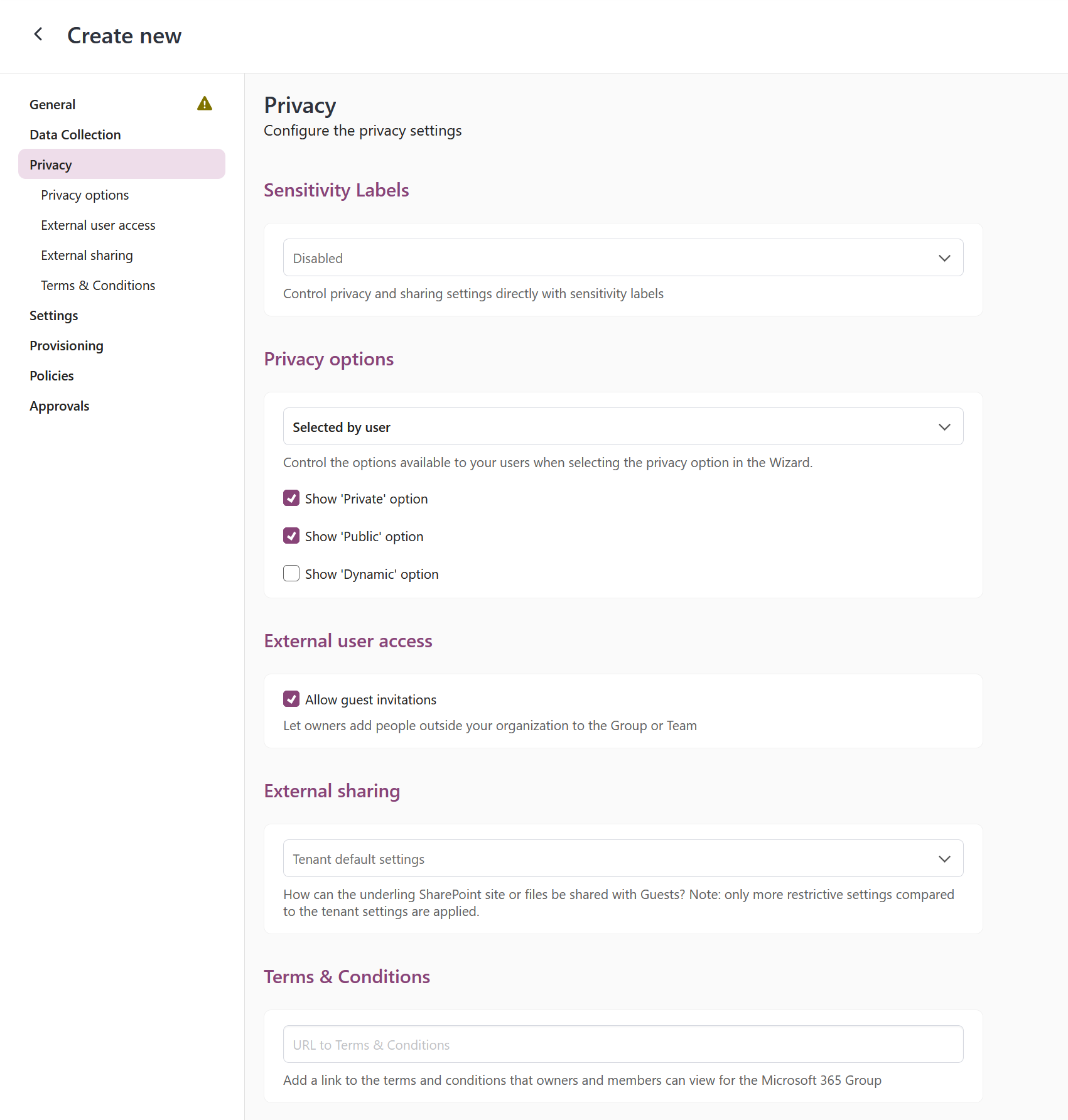
The privacy settings in EasyLife 365 enable you to specify which privacy options are presented to users when creating a new resource via the Create Wizard in the EasyLife 365 Collaboration App. The default privacy dropdown allows you to define which option will be automatically selected for the user in the Create Wizard. If you opt for Selected by user, users can choose from the displayed options.
EasyLife 365 provides the following privacy options:
- Private: Owners manage resource membership; permissions are required to join.
- Public: Open for anyone in your organization to join.
- Dynamic: Owners add more owners; membership is automatically managed based on dynamic rule configuration. You can utilize Entra ID dynamic memberships to configure a Team for all users belonging to specific departments or other queries supported by dynamic membership rules. Learn more about groups with dynamic membership in Entra ID and find an example on How to Configure Dynamic Membership using EasyLife Groups and Teams Templates.
Dynamic Groups are an Entra ID Premium feature that requires explicit licensing in your organization.
External User Access
The Privacy section allows you to configure guest access and privacy settings for the provisioned resource. You can specify whether guests are allowed using the Allow guest invitations option. Disabling this setting restricts owners from inviting external users for resources created with this template.
The option is also available on Viva Engage templates. Viva Engage has no guest switch of its own: Microsoft applies the guest setting of the Microsoft 365 group behind the community. Clear Allow guest invitations to stop communities created from the template from being opened to guests.
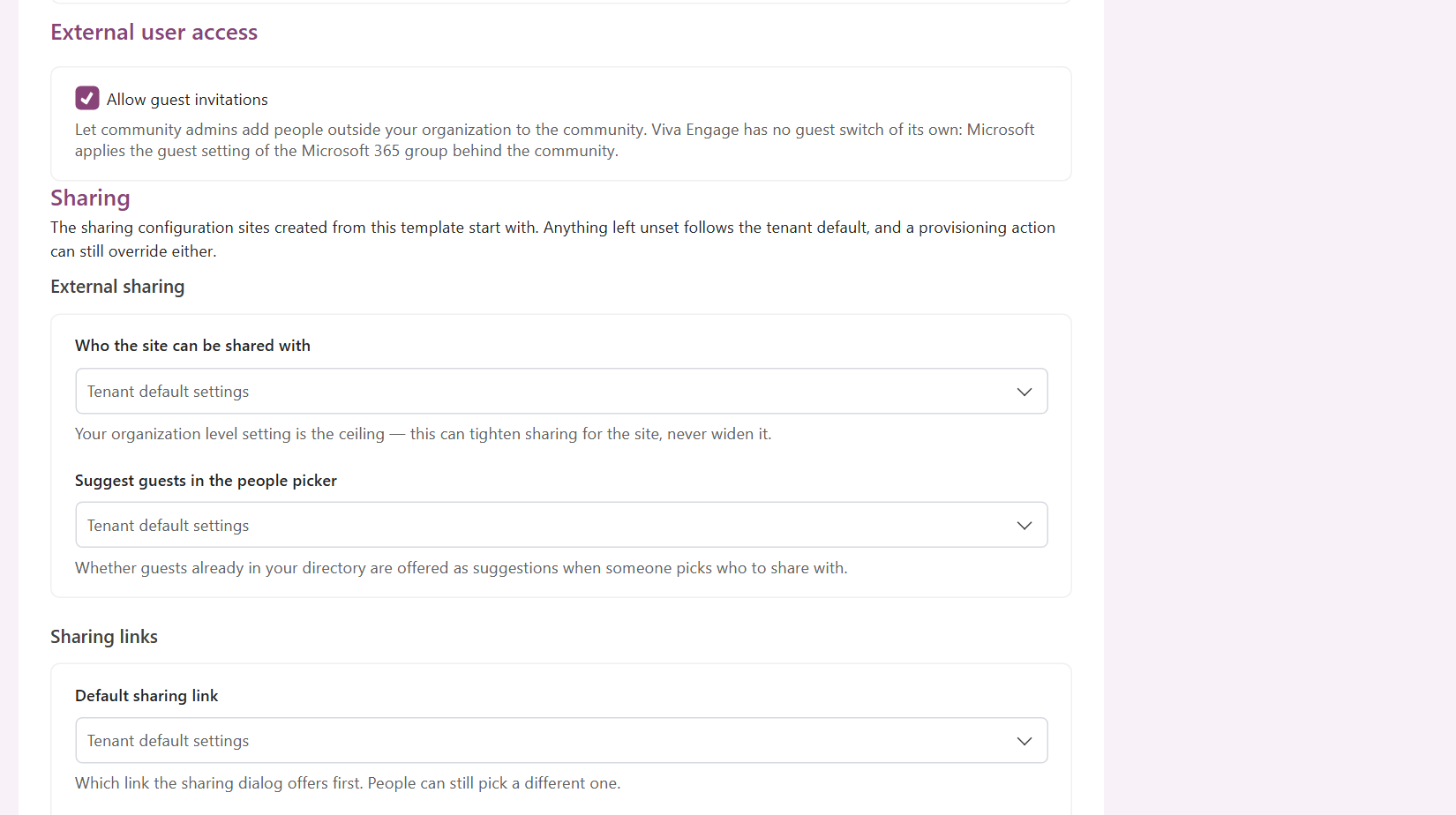
When a sensitivity label governs the template, the checkbox is disabled. The label writes the guest setting of the group itself.
Sharing
The Sharing section governs the complete site-level sharing configuration of the SharePoint site behind the resource. Setting this matters: even when guest access is disabled in Teams, files and folders can still be shared with guests from SharePoint.
The section covers:
- who the site can be shared with, and whether guests are suggested in the people picker,
- the default sharing link and its permission, and the expiry of Anyone links,
- domain allow and block lists,
- whether members can share the site and files, and whether they may add people to the site members group,
- access requests, and the address they are sent to.
Every control offers an unset option that names the value it defers to, such as Tenant default settings (Anyone).
A site can only be as restrictive as, or more restrictive than, your organization-level SharePoint setting. To verify the ceiling, check your SharePoint admin center.
For the full reference — including how the tenant default, the template and a provisioning action resolve against each other, and what changes when a sensitivity label governs the site — see Sharing.
The Sharing section is also shown on Viva Engage templates. It applies to the SharePoint site behind the community.
Terms & Conditions
The text box below Terms & Conditions allows you to specify a URL that must be confirmed before creating a new group.