Provisioning
The Provisioning section of team templates allows you to define what should happen when a new Team is created. This can be managed through a provisioning webhook, and you can also define templates for new Teams created from an existing template.

Teams Template
EasyLife 365 creates a new Team itself and then runs the automation steps. To start from a Microsoft Teams template instead, turn on Use a Microsoft Teams template under Classic Microsoft Teams template. The switch is available on templates for Teams only.
Automation Steps
Automation Steps define what happens after a resource has been provisioned.
- A Webhook can be used to trigger additional actions in an external system.
- When a new resource is provisioned, EasyLife notifies the external system and sends an object containing all the available information about the provisioned resource.
The Automation steps section at the bottom of the Provisioning tab lists the automation steps that can apply to the template, so you see what runs for a resource without opening each step.
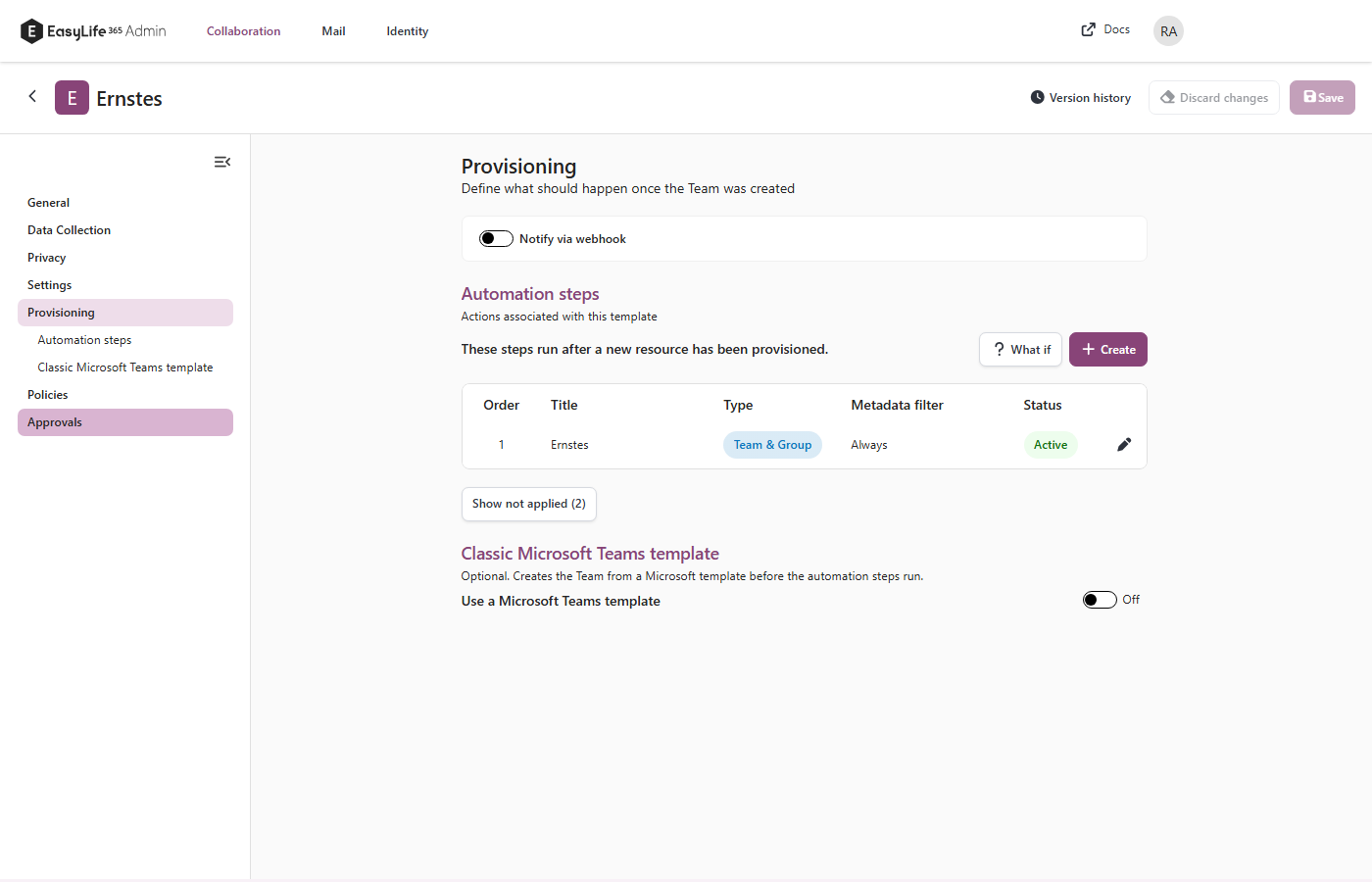
- The steps appear in the order in which they run, numbered from the first. The table shows the title, the type, the Metadata filter and the Status of each step.
- A step is listed when it has no filter, when its filter names the template, or when it has a metadata filter. A step that its filter excludes for this template is not listed. Steps that are switched off are collected under Show not applied.
- Select What if and enter example metadata to see which steps would run for a resource with that metadata. The list shrinks to those steps. Select Clear to show all steps again.
- Select a step to edit it, or Create to add a step. Your unsaved changes to the template stay in place while you do.
Which steps are listed depends on the template type. Templates for Microsoft 365 Groups, Teams, Viva Engage communities and Education show the Teams and group steps. SharePoint site templates show the SharePoint steps, and guest templates show the guest steps.
Classic Microsoft Teams template
The classic Microsoft Teams template is an optional extra below the automation steps of a Teams template. Turn on Use a Microsoft Teams template to create the Team from a Microsoft template before the automation steps run. Then choose the template under Template:
- Select one of the templates that Microsoft provides, for example Adopt Office 365. If a user creates a Team with these settings, EasyLife 365 applies that template.
- Select -- Custom template -- and paste the template ID of your own template under Custom Template ID. Create your own templates in the Microsoft Teams admin center with the locale English (United States), then copy the template ID.
The automation steps still run afterwards. When one of them adds channels or tabs, EasyLife 365 shows a warning, because the same channel or tab can then appear twice.
Leaving the switch off creates the Team without a Microsoft template. You cannot save the switch as on without choosing a template, and a custom template needs an ID.