SharePoint
The SharePoint section provides comprehensive configuration options for your SharePoint site.
Template
Utilize PnP Provisioning templates to effortlessly create custom site structures. The PnP Provisioning Framework, backed by an active community, offers robust support for this feature. You can either generate a PnP Provisioning template or upload your own.
Libraries
Easily add pre-defined libraries to your SharePoint site. Click the Add library button under Libraries to get started. For each library, specify a name under Library title. You can manage libraries by adding, deleting, or rearranging them using the provided controls. To copy content from an existing library, search for and select the source object, and choose the desired library from the dropdown list under Drive.
Folder colors
SharePoint lets you color a folder to mark areas at a glance, for example folders that are read-only for guests. Provisioning keeps these colors.
- In the folder tree under Add folders, select the color swatch next to a folder to choose one of the 16 SharePoint folder colors. Without a choice, the folder keeps the default yellow.
- When you copy content from an existing library, each copied folder keeps its color.
- A folder that already exists in the library gets the color of the template folder again every time the action runs. A template folder without a color leaves the color of an existing folder as it is.
- Colors apply to folders only. Permissions are not copied: new folders inherit the permissions of the library they are created in.
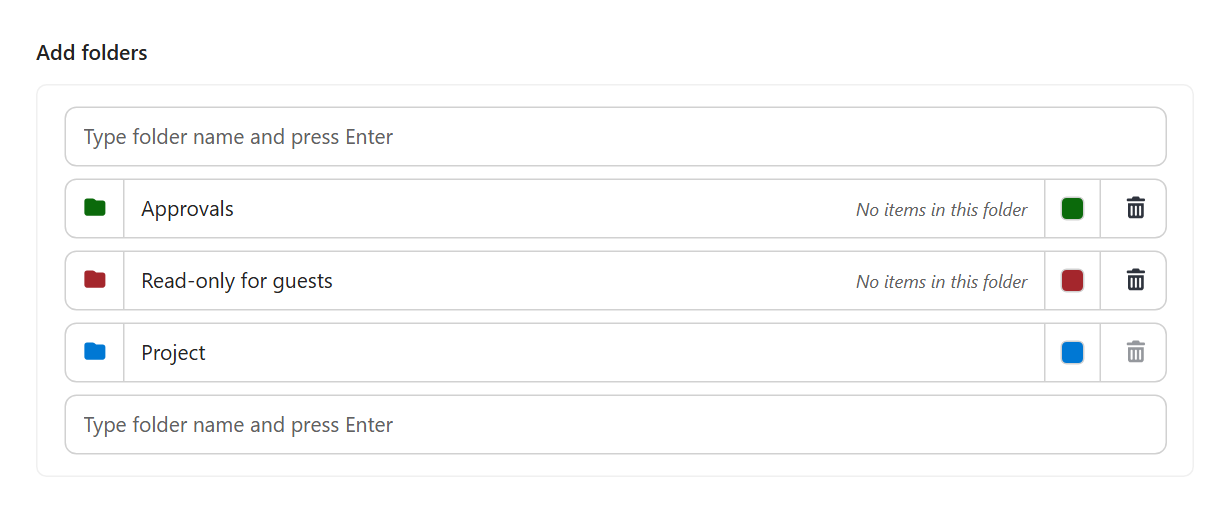
If SharePoint refuses a color for one folder, EasyLife records it and carries on with the rest of the site.
Sharing
Configure the complete site-level sharing configuration for the provisioned site: who the site can be shared with, the default sharing link and permission, Anyone-link expiry, domain allow and block lists, whether members can share the site and files, whether they may add people to the site members group, and access requests together with the address they are sent to.
These settings are no longer exclusive to a provisioning action. The same Sharing section now also exists as a tenant default under Settings → SharePoint sites and on every template's Privacy tab.
The action runs last, on the finished site, so anything you set here overrides both the template and the tenant default — setting by setting. Anything you leave unset keeps whatever provisioning already applied, which is why every control offers an unset option labelled Keep what provisioning applied.
Because the action runs against a site that already exists, no creation defaults are named on this layer.
Settings previously configured under Permissions & Sharing — access requests, the request address, members sharing files and folders, members editing the site members group, and guest suggestions in the people picker — are read into this section automatically. The legacy fields are cleared the next time the action is saved, so the same SharePoint property is never written from two places.
For the full control reference and how the three layers resolve, see Sharing.
Permissions
EasyLife 365 offers granular control over user access. Assign one or more groups to the standard SharePoint groups (Owners, Members, Visitors) according to their roles. Additionally, designate Site Collection Administrators for specialized oversight. These settings can also be configured for Microsoft 365 Groups provisioning.
Provisioning the SharePoint Site
- Navigate to EasyLife 365 Admin.
- Select Create and choose a SharePoint template.
- Enter the required information for site provisioning.
- After a minute, navigate to the Collaboration page and select the created site.
- Access the Team tab to view the site permissions set during provisioning.
Look
Customize the appearance of your SharePoint site by adjusting its Theme, Header, Navigation, and page configuration.
Other Settings
Configure additional settings such as associating the site with an existing HubSite, applying a site design, or triggering a webhook upon completion of SharePoint actions.
Regional Settings
Easily apply regional configurations such as time zones, locales, calendar types, and work week formats through automation steps. This capability enables you to align site behavior with user geography or adhere to organization-wide standards, enhancing usability and compliance across distributed teams.
Extensibility Options
Extend site provisioning functionality with the following capabilities:
- Hub Site Association: Automatically join a designated Hub Site during provisioning.
- Site Designs: Apply custom or preconfigured site designs to ensure consistent branding, structure, and behavior.
- Webhook Integration: Define a webhook endpoint to be triggered after all SharePoint settings have been applied. This enables post-provisioning automation, notifications, or integration with external systems.