Guest Accounts
To view all guest accounts, navigate to the Manage button in the menu bar at the top of EasyLife 365 Admin and select Guest Accounts. Here, you'll find a comprehensive list of all guest accounts within your tenant, accompanied by their assigned template, policy, and compliance status.
You have the flexibility to filter guest accounts by various criteria including their name, status, template, policy, and their status within EasyLife 365 life cycle.
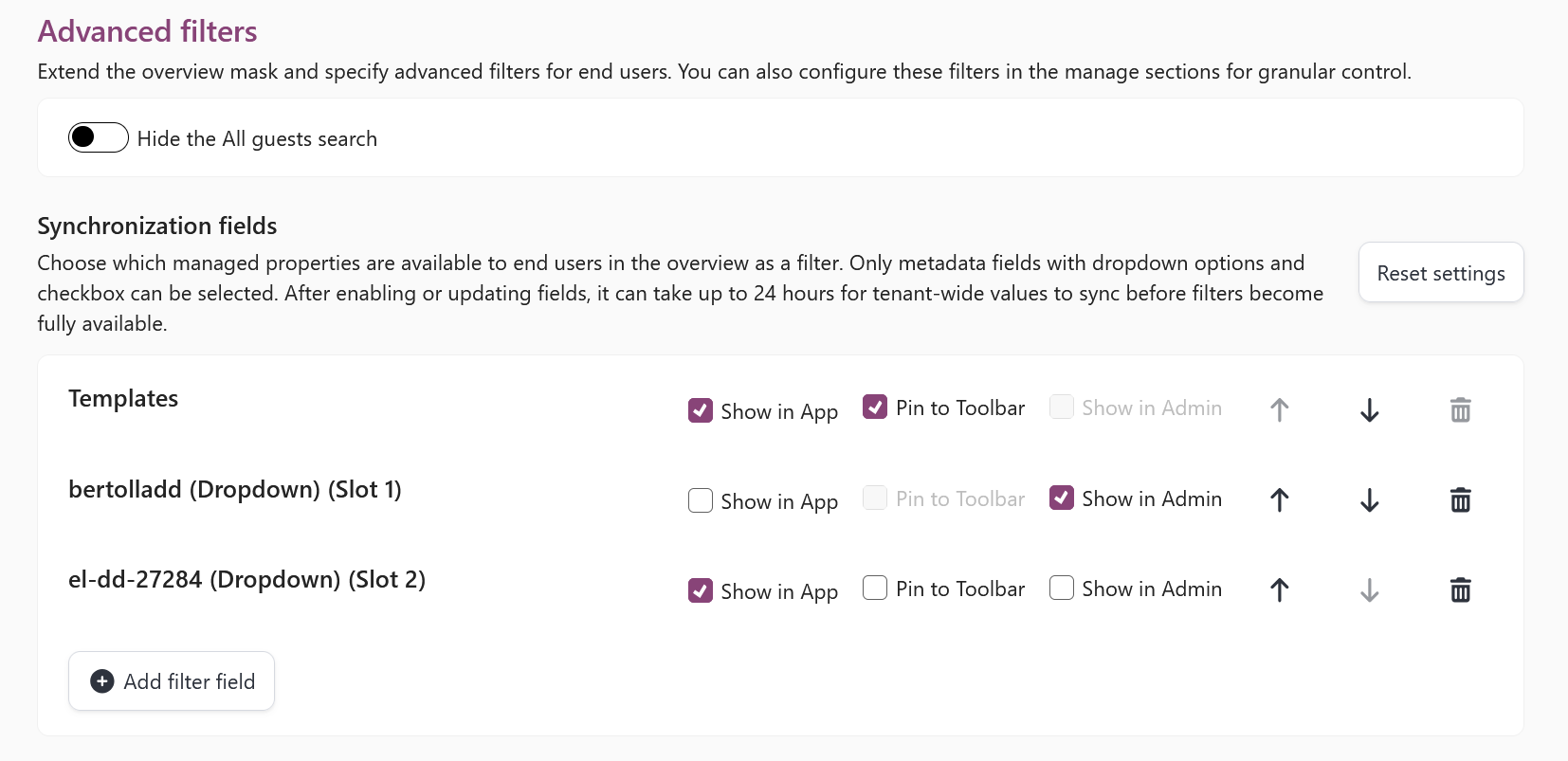
Additionally, Advanced filters are available to provide a centralized directory experience. You can quickly find and sort through guest accounts based on configured managed properties (dropdown metadata fields). You can configure these filters for granular control with the following options:
- Show in app: Makes the filter visible to end users in the EasyLife 365 Collaboration App.
- Pin to toolbar: Pins the filter directly to the top toolbar for quick access, rather than keeping it inside the advanced filters panel.
- Show in admin: Makes the filter available to administrators in the Cockpit Manage views.
We add some metadata fields to the advanced filters for guest accounts, which can be used to filter guest accounts based on their value.
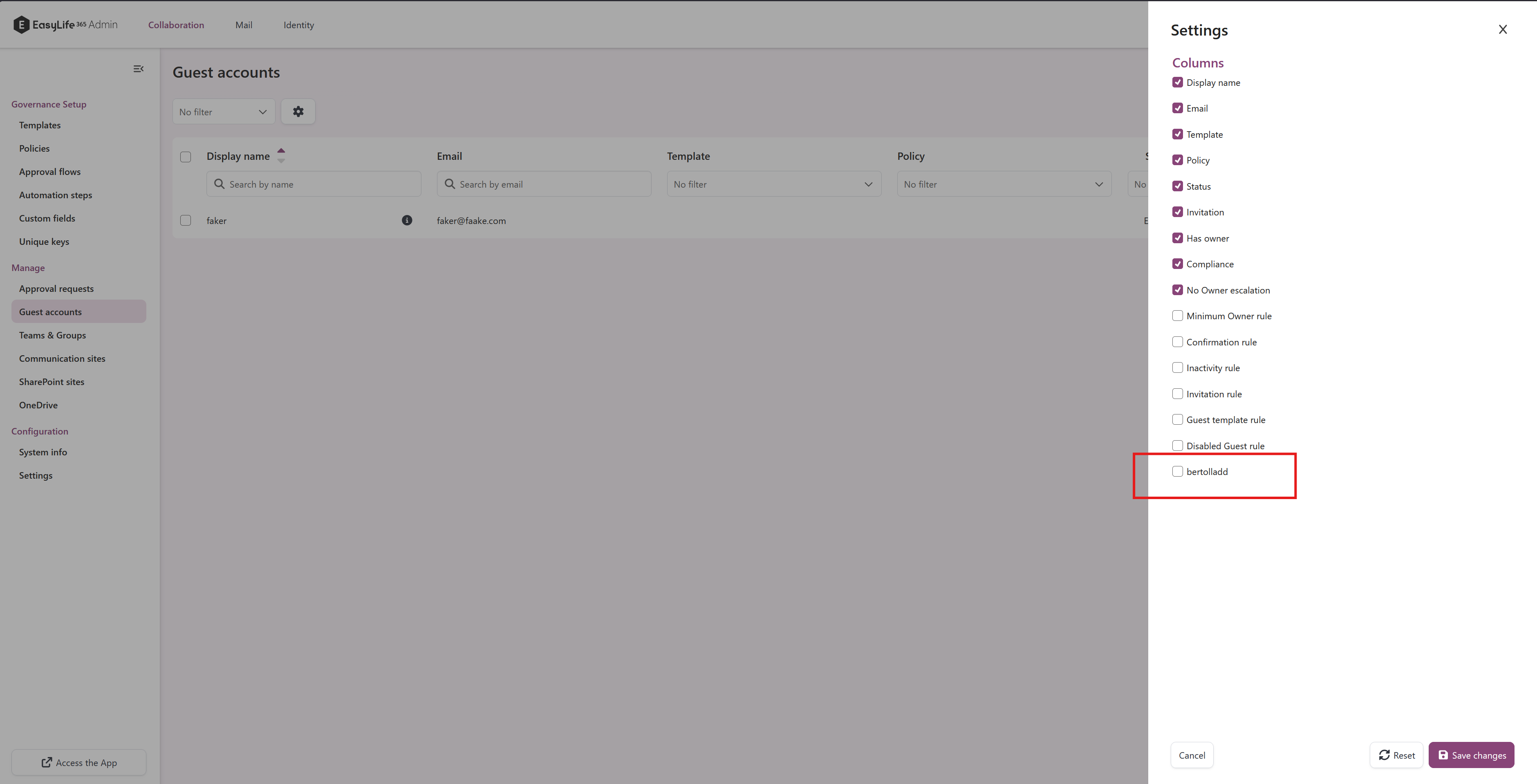
In admin we will have the same filters in sider panel but with the option to pin them to the toolbar for easier access:
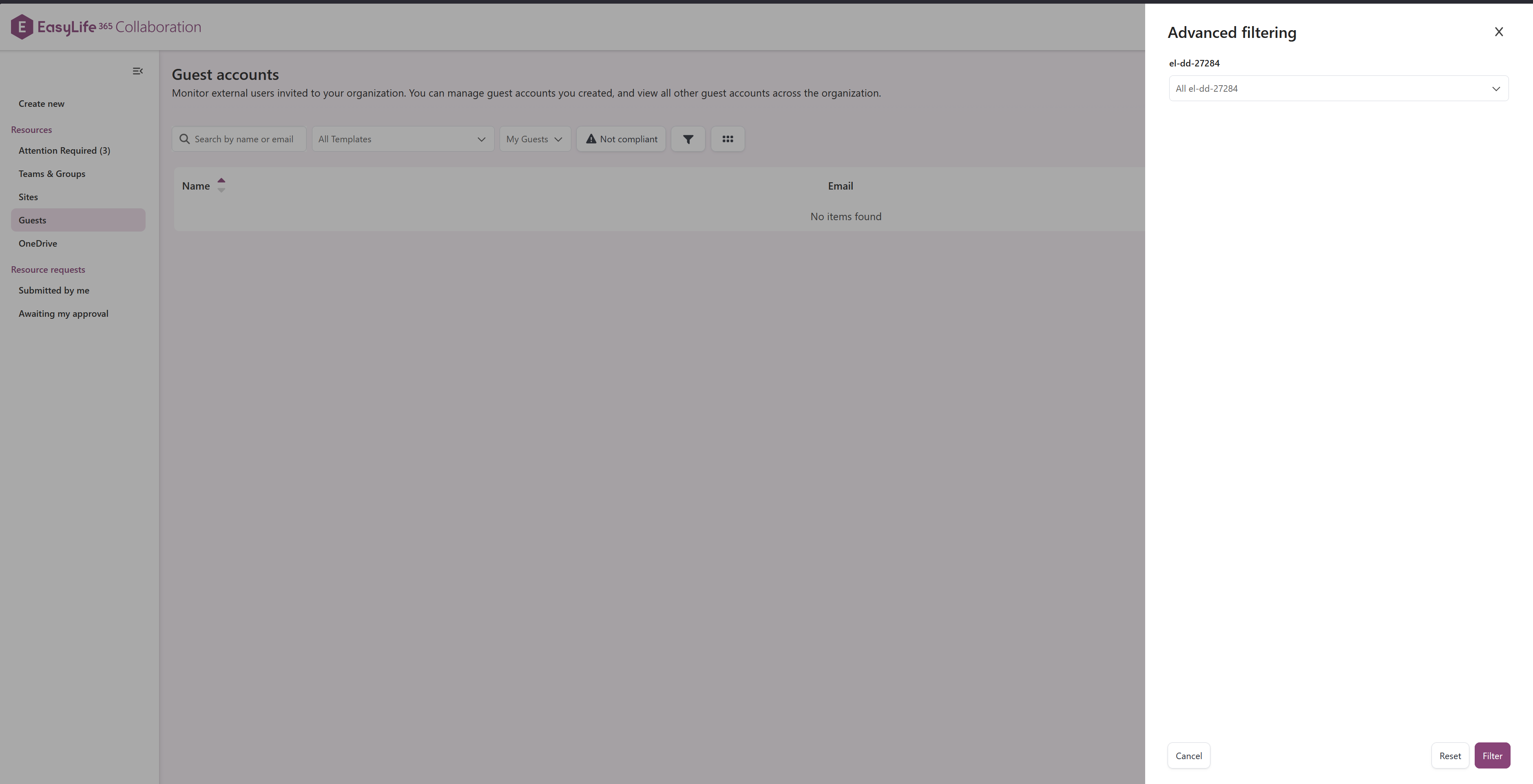
And in the app we will have the same filters in the side panel again with the option to pin them to the toolbar for easier access:
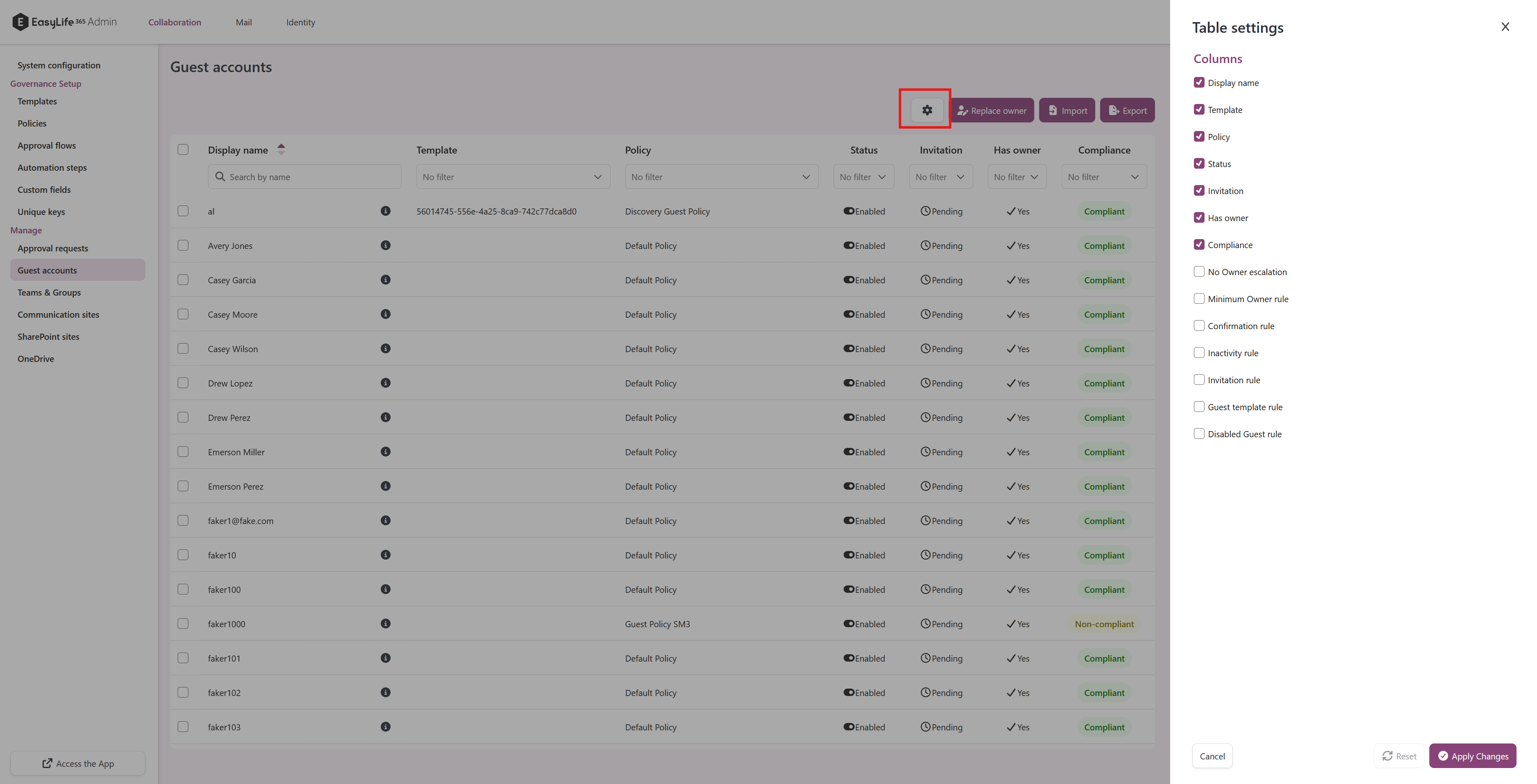
Overview - Show/Hide Columns
The overview table allows you to customize the displayed columns. To show or hide specific columns, click on the column chooser icon located at the top right corner of the table. This will open a panel where you can select or deselect columns based on your preferences.
Compliance panel
The Details panel lists only the rules that are actually being evaluated on that guest account. See Compliance panels for what is shown and why.
Bulk Editing
Efficiently manage guest accounts using the Manage app within EasyLife 365 Admin. You can modify templates, policies, enable/disable, or delete multiple guest accounts simultaneously.
To assign a new template and/or policy to selected guest accounts, simply check the boxes beside their names and click the Change Template and Policy button located above the list.
-
In the first step, select the desired template and policy for the guest accounts. You can also clear any existing template/policy or choose No change to solely adjust the policy.
-
Before confirming the changes, a list of affected guest accounts and the planned modifications will be displayed. Press Apply changes to proceed with the changes.
To delete or enable/disable guest accounts, select the relevant accounts using the checkboxes beside their names, then click the corresponding button above the list.
Impact of Policy Changes
Changing the policy assigned to a guest account triggers a reevaluation of its compliance against the new policy from the time of assignment.
Impact of Template Changes
Switching the assigned template for a guest account only alters its associated metadata. Changes to the policy assigned to a template will not automatically update the metadata of existing guest accounts.
Import and Export
The Manage section provides functionality to bulk import guest accounts using CSV files and export existing guest account data for analysis or backup purposes.
Importing Guest Accounts
You can create multiple guest accounts simultaneously by importing a properly formatted CSV file. This is particularly useful when onboarding large numbers of external users or migrating from another system. For detailed instructions on the import process and CSV format requirements, see How to import guest accounts using CSV.
Exporting Guest Accounts
To export guest account data:
- Navigate to the Guest Accounts section in Manage
- Click the
Exportbutton above the list
The exported data includes all guest account properties, metadata fields, and current compliance status, making it valuable for reporting and auditing purposes.